 RowDocs · Pricing
Certificates from Google Forms, sent automatically
Someone submits your Google Form (a quiz, a course feedback form, a webinar sign-in) and gets their own PDF certificate by email. RowDocs fills your Google Slides or Docs certificate with their answers, saves the PDF to your Drive and sends it. Start from our free certificate template below.
Install from Google Workspace Marketplace
RowDocs is in Google's review right now. It will be installable from the Marketplace as soon as Google approves it.
Your Autocrat templates just work
Same <<Column Name>> tags, so switching takes minutes, not a rebuild.
Runs on form submit
New Google Form response in, document and email out. No button to press.
Only the rows you want
Merge rows that match a condition, like Status is "Approved", and skip the rest.
Links written back
The document link and status go into your sheet, so you always know what was sent.
Formatting built in
<<Amount|number:2>>, <<Date|date:d MMMM yyyy>>, <<Name|upper>>.
Minimal access
RowDocs only works with the files you pick and the documents it creates. It never reads your Gmail.
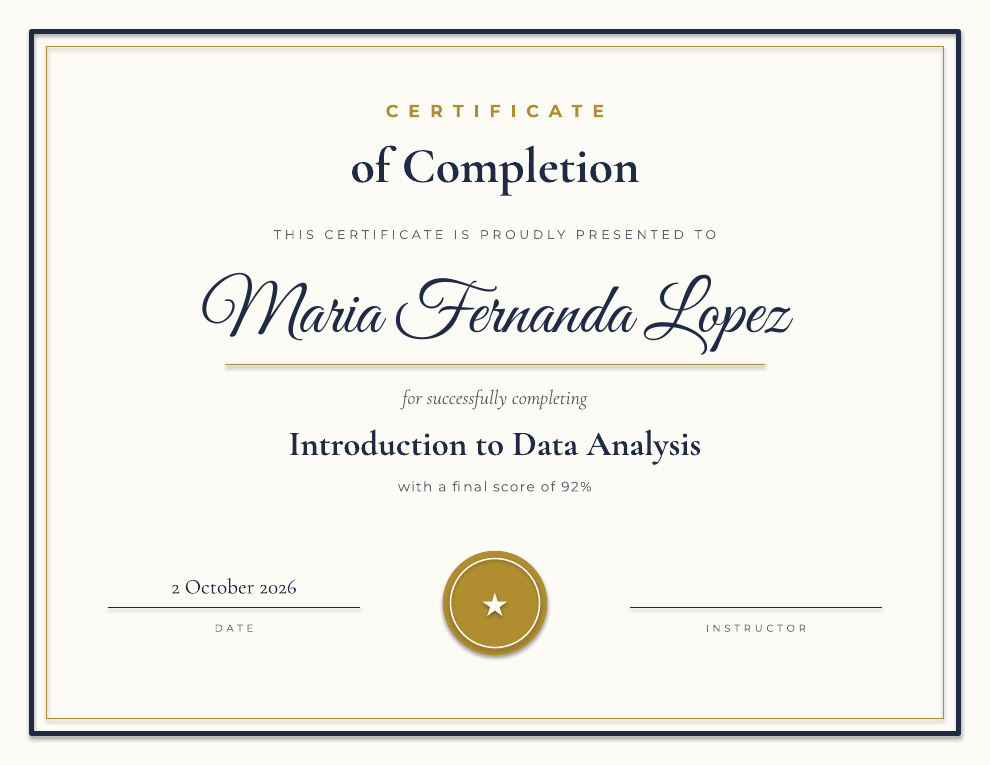
Download the free certificate template
Landscape US Letter. Upload it to Google Drive and open it with Google Slides (or import it in Slides via File > Import slides). It uses Google Fonts, so it looks the same in Slides. Free to use, with or without RowDocs.
Who it's for
Teachers
Students take a Google Forms quiz; the ones who pass get a certificate with their name and score.
Trainers and course creators
Completion certificates for workshops, onboarding and CPD sessions, without editing each one by hand.
Webinar and event hosts
Attendees fill in the attendance or feedback form after the session and their certificate arrives in their inbox.
How it works, in 3 steps
- Make your certificate. Open the template in Google Slides and change the wording, colors or logo. The <<Name>>, <<Course>>, <<Score>> and <<Date>> tags are filled from the response, so rename each one to match a column header in your form's response sheet (for example <<Full name>>). Delete the score line if you don't need it.
- Connect your form's response sheet. In the sheet, open Extensions > RowDocs > Set up merge, choose the template and a Drive folder, set the output to PDF, and pick the Email Address column to send each certificate to. You can write the email subject and message with the same tags.
- Tick "Merge each new Form response automatically". Every new response now gets its certificate shortly after it comes in. For responses you already have, click Merge now once. The PDF link and status are written back into each row.
Questions
Can only people who passed get a certificate?
Yes. Add a row condition, for example Result equals "Pass" (or a column that is not empty), and other rows are skipped.
Can the date look like 2 October 2026?
Yes. The template uses <<Date|date:d MMMM yyyy>>, which formats a date column (such as the form's Timestamp) any way you like.
Does it send from my own email?
Yes. Certificates are sent from your own Google account, with the PDF attached. RowDocs never reads your Gmail. Google limits scripts to about 100 recipients a day on a free Gmail account and 1,500 on Google Workspace.
Will people get a second certificate if I click Merge now again?
No. Rows that already have a merge status are skipped.
How many certificates are free?
20 a day are free. Pro removes the limit for $49 a year.
Free to start
20 documents a day free, forever. Pro removes the limit for $49 a year. See pricing.